
Settings
Open Settings from the menu (or More in the bottom bar). Everything here can be changed at any time.
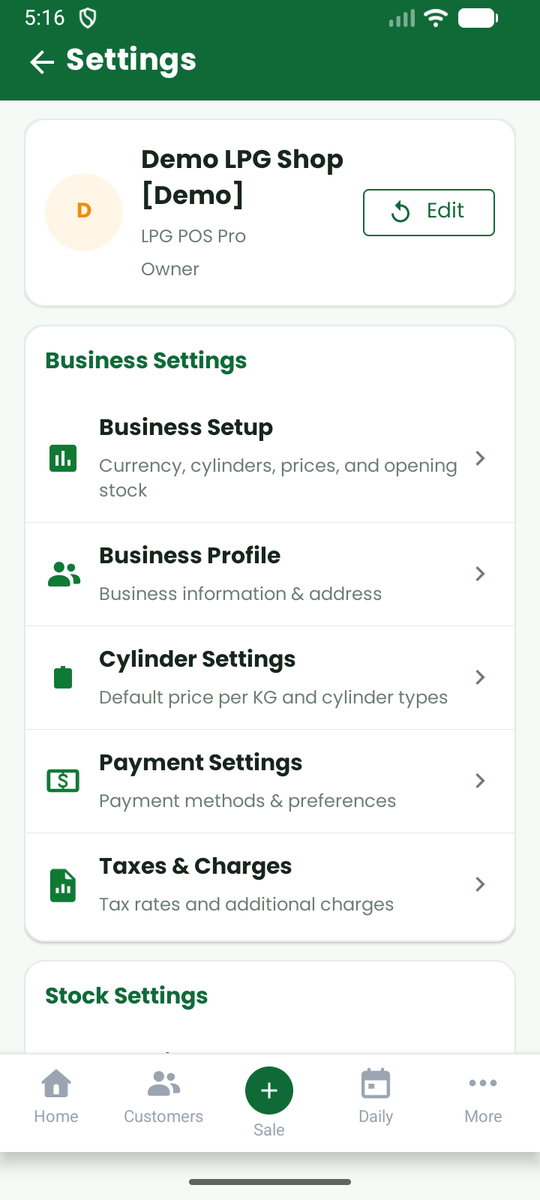
Business settings
- Business Setup. The three setup steps you completed when you started. Open it to review them.
- Business Profile. Shop name, address, city, phone and e-mail. These appear on receipts, invoices and reports.
- Cylinder Settings. Your cylinder sizes, your price per kg (the app multiplies it by the size to price every cylinder), and optionally:
- a wholesale price per kg for wholesale customers. It cannot be higher than the normal price.
- a cost price per kg, used only for gas you had before you started using the app. It lets the profit report work out profit on that gas.
- a switch for letting sellers change the price on a sale. Turn it off if you want every sale to use the list price.
- Payment Settings. How payments are recorded.
- Taxes & Charges. A default tax percentage and delivery charge for new sales.
Stock settings
- Suppliers and Stock received. The same screens as in the menu.
- Stock Settings. How stock is counted.
- Low Stock Alerts. Turn them on and choose the level.
Receipt & Print Settings
Choose the paper width (58 or 80 mm), turn a Bluetooth thermal printer on, and pick the printer you paired in your phone's Bluetooth settings. Choose what the receipt shows: your address, the customer's balance, cylinders with the customer, and payment status. Add a footer line such as "Thank you!". Use Test print to check it.
Note: Printer pairing belongs to each phone. If you restore on a new phone, pair the printer again.
App settings
- Language. English, Urdu, Hindi, Bengali or Spanish.
- Subscription & Billing. See Plans and subscriptions.
- Currency Settings. The currency symbol and how many decimal places to show.
- App theme. Three looks: Fresh Green, Classic Ledger and Bold Bazaar.
Security and access
- Unlock with fingerprint or screen lock so only you can open the app.
- Backup & Restore (Pro). Saves an encrypted backup file of this phone. Restore it only on the same app. It is listed under Security & Access and may not appear on every phone.
- Remove data from this device and Logout. Logging out keeps your shop's data on the phone so you can sign back in to the same account. See Offline and sync.
Subscription
Subscription & Billing shows your plan, lets you subscribe or change plan, and opens Google Play to manage or cancel. See Plans and subscriptions.
Support and the web app
- Support opens a ticket or WhatsApp chat with us.
- Web portal shows the address of the web app and how to sign in to it.