
Selling
LPG POS has two ways to record a sale: New sale, which has every option, and Quick sale, which is the fastest way to record an ordinary sale.
New sale
Open the green + Sale button, or New sale in the menu.
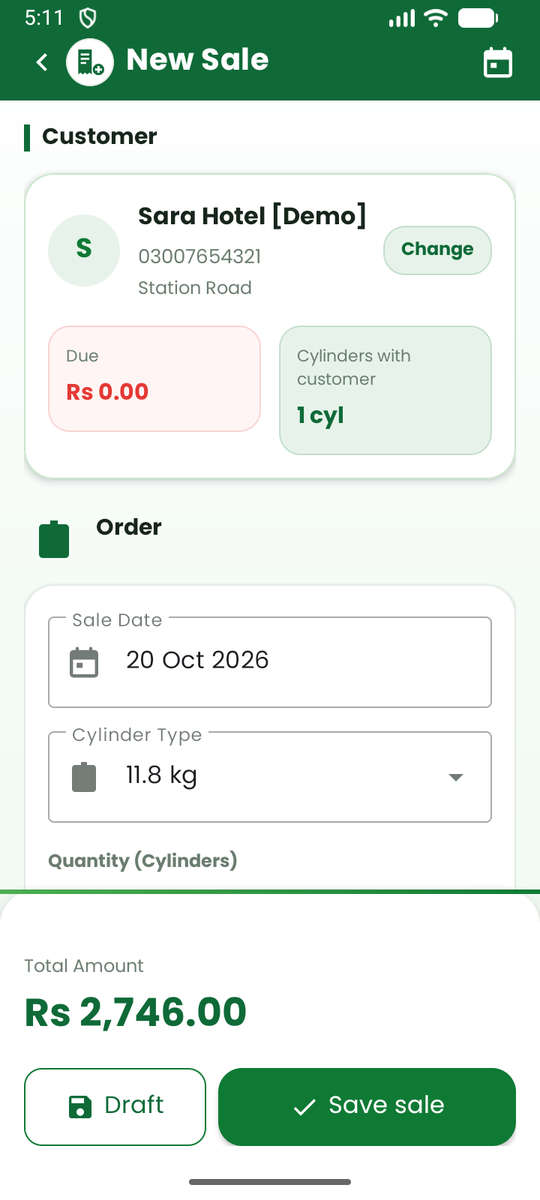
- Customer. Pick one, or add a new customer on the spot. You will see what they owe and how many cylinders they hold.
- Date. Today by default. Change it if you are recording an earlier sale.
- Cylinder type and quantity. Choose the size and how many filled cylinders you are delivering. The app shows how many you have in the godown and warns you if you do not have enough.
- Empty cylinders returned. How many empties the customer is giving back now.
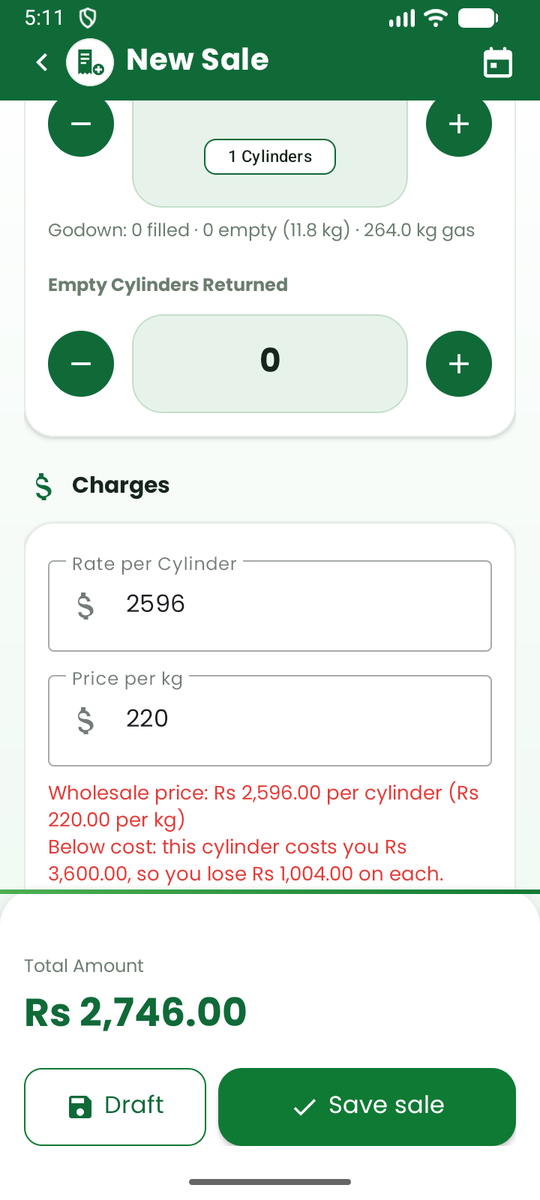
- Charges. The Rate per Cylinder and Price per kg. See below.
- Discount, tax and delivery charge (all optional). The tax percentage and delivery charge you saved in Settings are filled in for you.
- Payment. Choose Full Payment, Partial Payment or On Credit, and the mode of payment (for example cash). With a partial payment, type the amount received. The remaining due is shown.
- Save sale. Or tap Draft to keep it unfinished and complete it later.
After saving, a receipt appears (see Receipts below).
Prices: retail, wholesale and changing the price
- Each customer has a type, Regular or Wholesale. A Regular customer is charged your normal price. A Wholesale customer is charged your lower wholesale price (if you set one in Settings).
- A line under the price tells you which list is used, for example "Wholesale price: Rs 3,800 per cylinder".
- To change the price on one sale, type a new price in the Price per cylinder box, or a price per kg in the Price per kg box. The other box updates by itself. The app tells you how much more or less than the list price you are charging.
- Use list price puts the list price back. Emptying the price box does the same.
- Changing the price affects only this sale. The prices in Settings do not change.
Note: The owner can switch off price changes while selling (Settings, Cylinder Settings). When it is off, sales always use the list price.
When the price is lower than what the cylinder costs you, the app warns you in red so you do not sell at a loss by mistake. This warning uses the stock you have received and the cost price you entered in Settings.
Quick sale
Use Quick sale (menu, Quick actions) when you just need to sell. Pick the customer and the cylinder size, set the quantity, choose cash or credit, and save. If you need a different price, tap Change price. Everything else uses your defaults.
Receipts
After saving a sale you can:
- Print on a Bluetooth thermal printer (58 mm or 80 mm), or through the Android print dialog, where you can also save as PDF.
- Send it on WhatsApp to the customer.
- Share it as text or a PDF.
Set up the printer, the paper width, what the receipt shows and your footer line in Settings.
Change or cancel a sale
Open the sale from the customer's history or from the Daily sheet.
- Edit lets you correct the details. The customer's balance, the cylinder counts and your stock are recalculated.
- Void cancels the sale but keeps it in the ledger, marked as cancelled, so there is a record. You choose a reason such as entry mistake, duplicate or customer cancelled. Voided sales are not counted in totals.
- Delete removes a transaction completely and cannot be undone. Prefer Void.