
The web app
The web app lets you see and manage your shop from a computer. It is included with Pro Monthly, Pro Yearly and the free trial.
Sign in
- Open the web app address (in the app, open the menu and choose Web portal).
- Tap Continue with Google and choose the same Google account you use in the app.
If you only signed in to the app with a phone number, add a Google account in the app first (Web portal guides you). If your plan does not include the web app, you will see a message asking you to subscribe to Pro Monthly or Pro Yearly in the Android app.
What is on the web
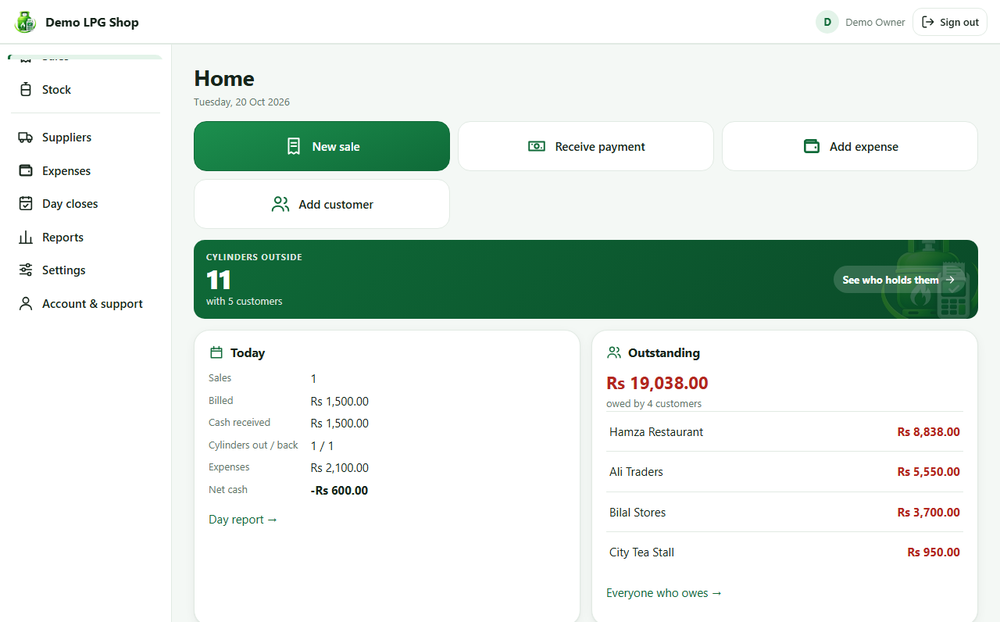
- Home. Your shop at a glance.
- Customers. List, search, sort and filter. Open a customer for their ledger.
- Sales. Every sale, payment and cylinder return. Record a new sale, a cylinder return or a payment, and edit or cancel an entry.
- Stock. Balances by size, stock received, every movement and gas transfers. Record stock received and gas transfers.
- Suppliers. What you owe each supplier, their deliveries and your payments.
- Expenses. Add, edit and review by month and category.
- Day closes. The history of closed days.
- Reports. Day report, Who owes money, Cylinders outside and Profit and loss.
- Settings and Account and support. Your details, plan and devices, and your support tickets.
Long lists: scroll, sort, search, export
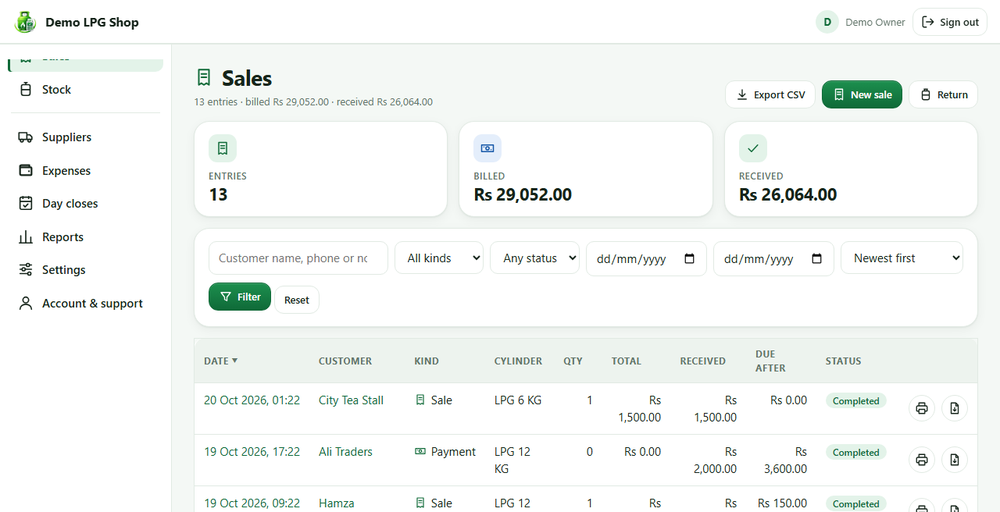
- Scrolling. More rows load as you scroll. A Load more button is also there.
- Sorting. Click a column title to sort, click again to reverse. On a phone, use the Sort by menu.
- Search and filters. Results update as you type.
- Export CSV. The Export CSV button downloads exactly the list you are looking at, with the same search, filter and sort. It opens in Excel.
Invoices, receipts and statements
Every sale can become a document you can print or keep.
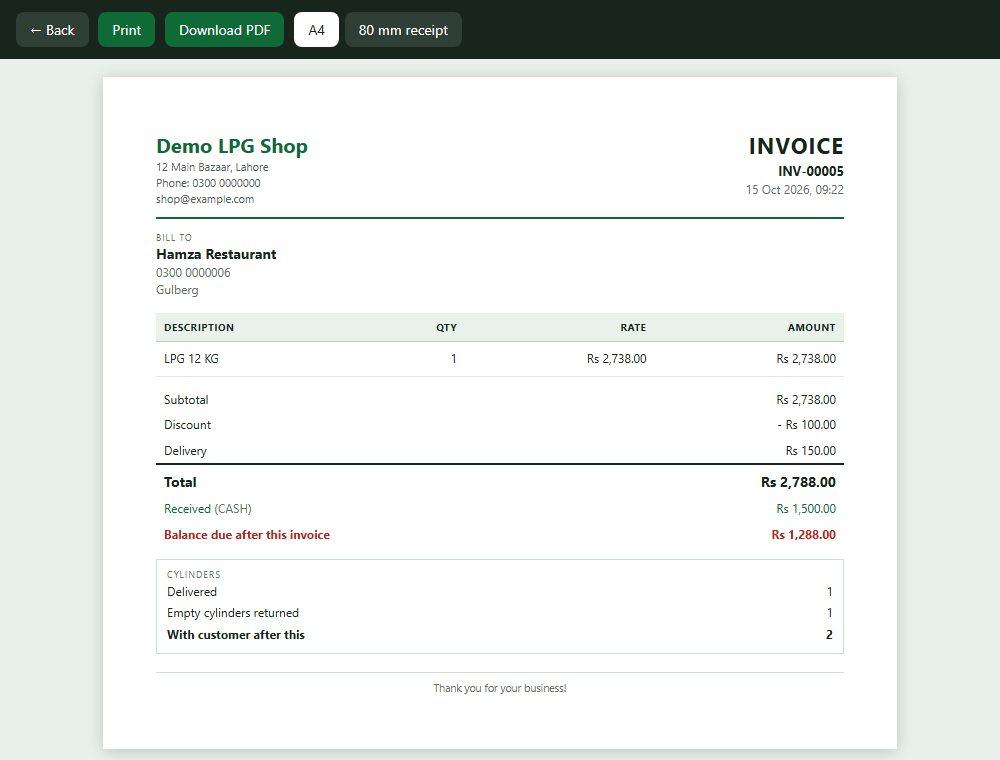
- On the Sales list, each row has a Print icon and a PDF icon. Print opens the invoice and starts printing. PDF downloads it.
- Open a sale and tap Invoice (or Receipt for a payment, Return slip for returned cylinders), then Print or Download PDF.
- Choose A4 for a full page or 80 mm receipt for a receipt printer.
- An invoice shows your business details, the invoice number, the customer, the items, discount, delivery, tax, total, what was received, the balance due, cylinders delivered and returned, and your footer text. A cancelled sale is marked CANCELLED.
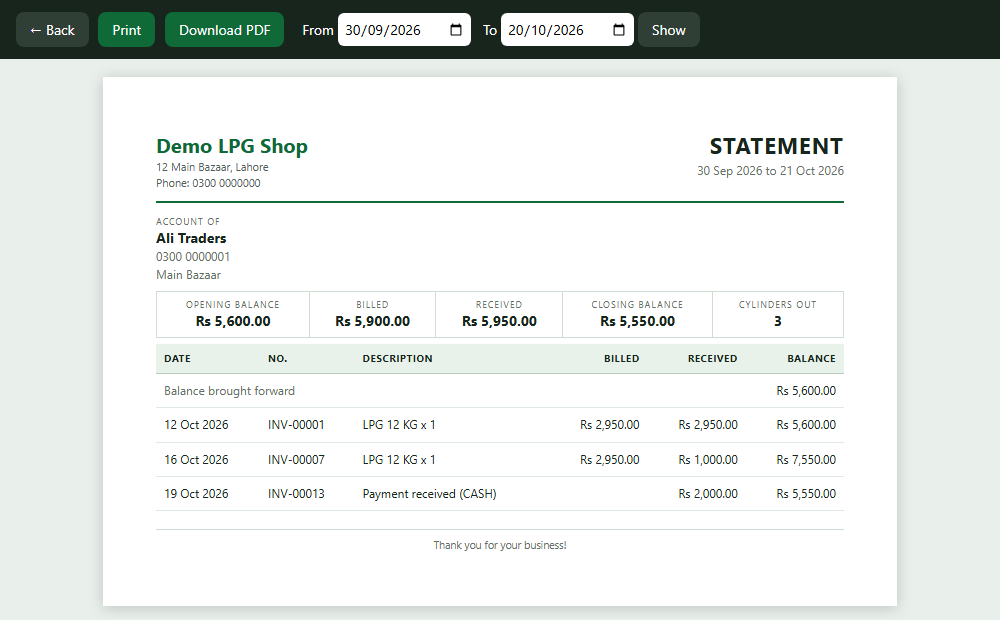
- Open a customer and tap Statement to get a statement for a date range: the opening balance, every entry with a running balance, and the closing balance. You can print it or download it as a PDF.
Names in Urdu and other languages print correctly.
Staying in sync
The web and your phone show the same shop. What you record on one appears on the other. Your phone must be online for its changes to reach the web.
Signing out
Use Sign out at the top right, especially on a shared computer.